
In this section:
- Getting started
- Networking
- Accessing your ticket
- Accessing the agenda
- Participating in sessions
- FPM Challenge
Attending Online?
Find out more about using our dedicated conference web platform by clicking here.
Find out more about using our dedicated conference web platform by clicking here.
Getting started
 1. Download the app
Download the Event App by AITL onto your device.
- Apple (iOS) users: Click here to download it from the App Store
- Android users: Click here to download it from Google Play
Enable push notifications
When you first open the app, you may be prompted to allow notifications. Tap ‘Allow’ to receive important announcements, updates and reminders throughout the day.
Didn’t see the prompt? You can check whether notifications are enabled and switch them on through your device’s settings.
2. Log in
Open the app and log in using the following details.
- Secure key: FPM2026
- Email address: enter the email address you used to register for the event
- Password: this is your individual booking order ID which will have been sent to you in an email from FPM Events
3. Editing your profile
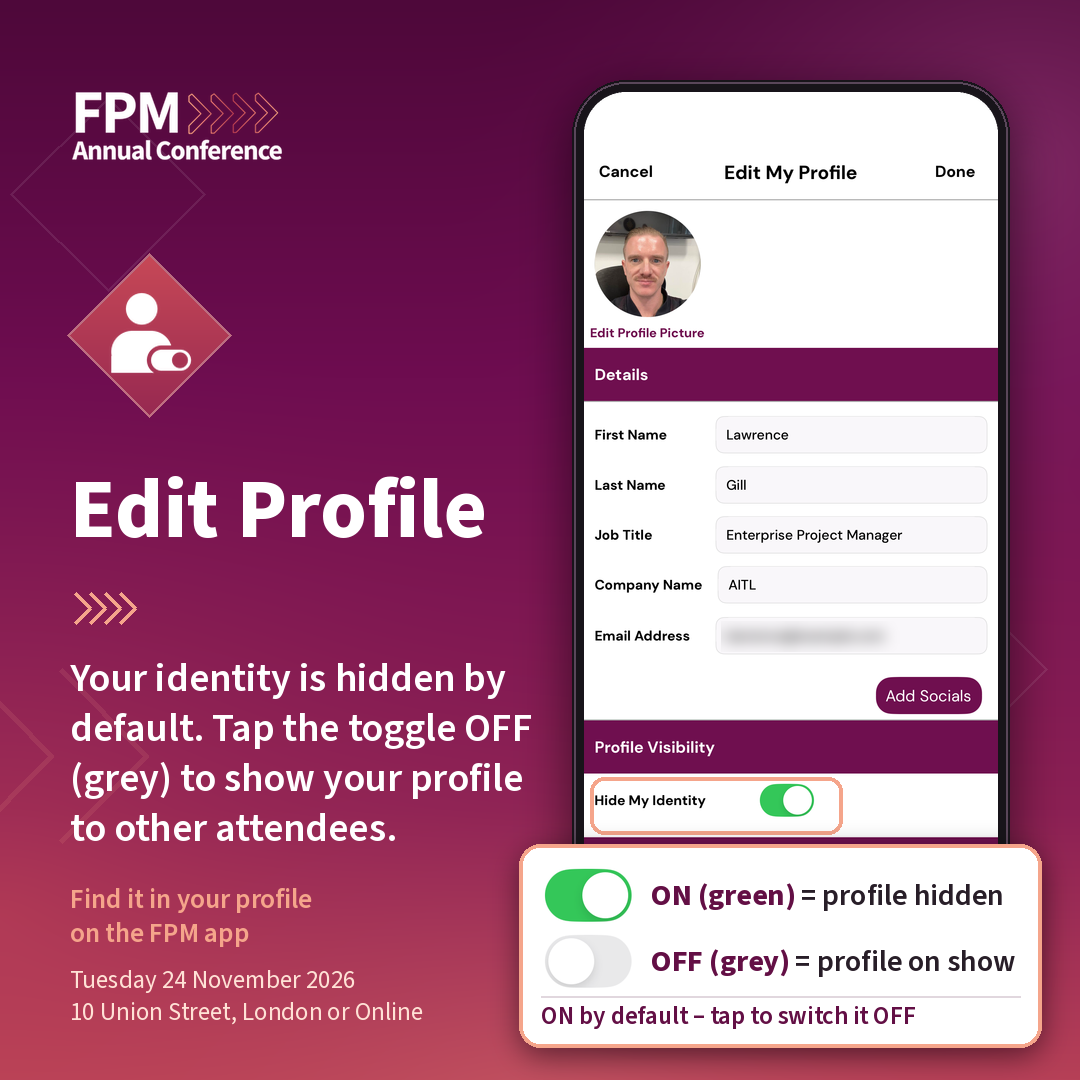
You will now see the ‘Edit My Profile’ screen.
All profiles are hidden by default. To connect with other attendees using the app, you must switch OFF the ‘Hide my identity’ setting (the toggle should appear grey when switched off).
IMPORTANT: You must complete this step so that other attendees can find and message you.
Your profile will now be visible to all other attendees using the app. You should now complete your profile by adding your bio, a profile picture, and your networking interests to help other attendees get to know you.
To find and connect with like-minded attendees, we recommend selecting 3-5 of the options listed in the ‘My Interests for Networking’ section.
Accessing your ticket
When you arrive on the day, you will need to present your in-app ticket at reception to check in.
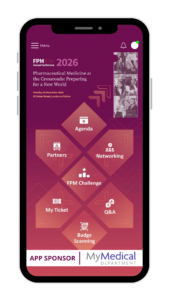
You can find this by tapping on ‘My Ticket’ on the app’s home screen.
You will then receive your printed delegate badge to wear throughout the event.
Networking
Ready to connect?
Want to network with others via the app? Before you start, make sure you have:
- Toggled OFF “Hide My Identity”
- Completed your profile
- Selected 3–5 interests in the “My Interests for Networking” section
1. Find and filter other attendees
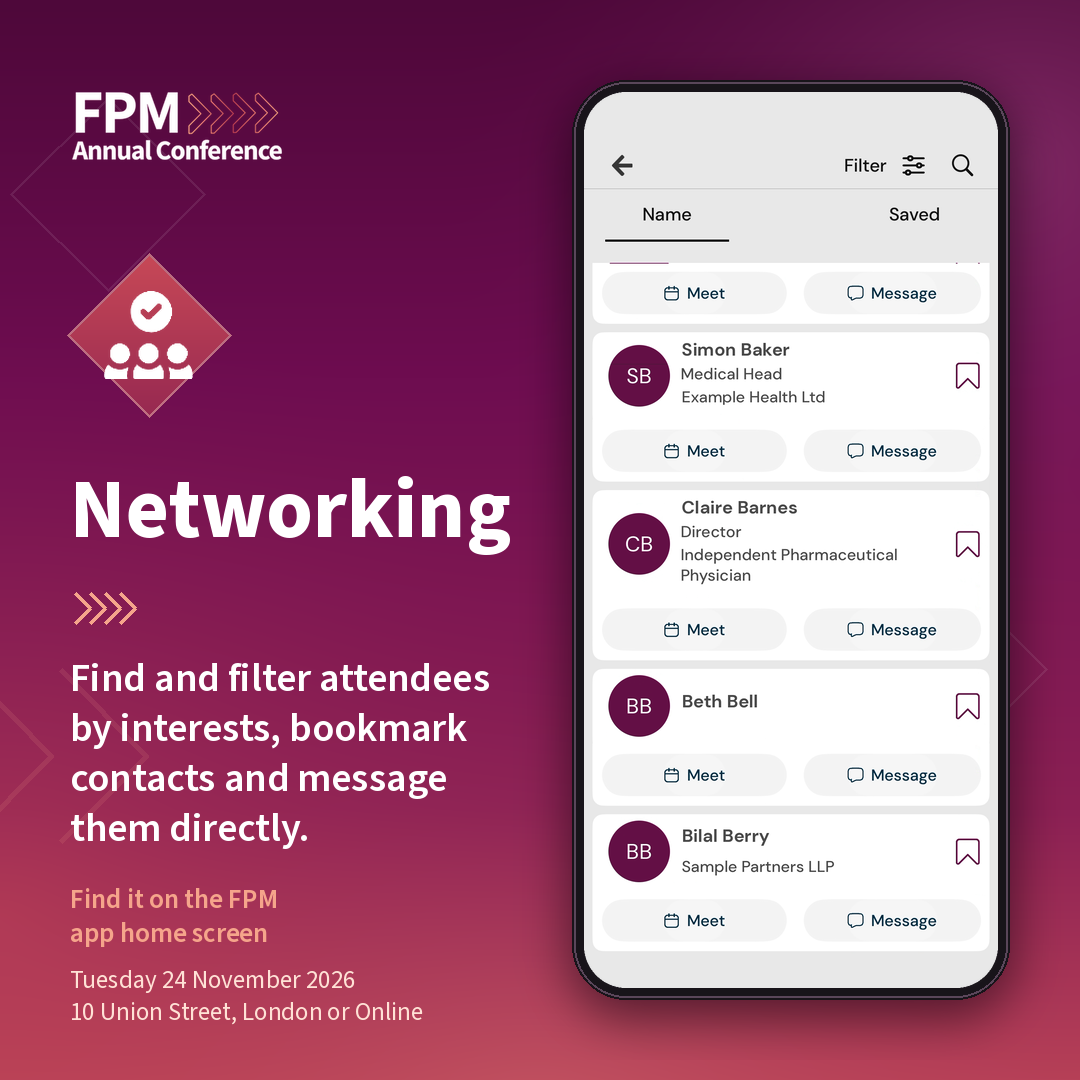
Tap ‘Networking’ on the app’s home screen to view a list of visible attendee profiles.
To find others who share the same interests as you, tap ‘Filter’ in the top right of the screen. Once you have selected your filter options, tap the purple ‘Filter’ button in the bottom left of the screen.
Tap on any profile to see it in full. You can also scroll through the entire list, use the search function, and save profiles for later by tapping the bookmark icon next to a name.
2. Message and arrange meetings
You can also message attendees directly in the app by tapping on the ‘Message’ button below their name.
Use the ‘Meet’ button to create and send someone a meeting request.
Keep track of your messages and meetings by tapping on the Menu icon in the top left of the home screen and tapping the ‘My Meetings’ or ‘My Messages’ menu items.
Accepted meetings will also show up under ‘My Agenda’.
3. Scan other badges to connect
There is also a badge-scanning feature to make connecting in-person quick and easy. Simply tap ‘Badge Scanning’ on the app’s home screen to open the badge scanner.
If you are prompted to grant access to your device’s camera, tap ‘Allow’.
Point your device’s camera at the QR code on their badge and follow the on-screen prompts to save their details.
Click here for a detailed guide to badge scanning (PDF).
Accessing the agenda
Tap on ‘Agenda’ on the app’s home screen to view the full conference programme, learn about the day’s sessions and read speaker bios.
You can also view your personal schedule by tapping on the ‘My Agenda’ tab. Any accepted meetings with other delegates will also show up here.
Participating in sessions
Have a question for a speaker? Access the Q&A feature by tapping ‘Q&A’ on the app’s home screen.
Tap on ‘Type your question’ to open the Ask the speaker box. After typing in your question, you can either choose to send it anonymously or add your name.
Some sessions may feature interactive polls. When prompted, navigate to ‘Q&A’ from the app’s home screen, and then tap on the ‘Polls’ tab at the top.
Follow the speaker’s instructions and submit your response to the relevant active poll.
The FPM Challenge
Add a little friendly competition to your conference experience with the FPM Challenge!
Visit participating stands in the exhibition space on the day and look out for any QR codes.
Navigate to the ‘FPM Challenge’ from the app’s home screen and tap on the ‘Scanner’ tab at the top to scan a QR code and earn points.
The more points you collect, the closer you get to winning a prize! The winner will be announced before the conference closes at 5pm.
Need help? If you have any issues with the app, please email support@aitl.io.
Using the Conference Web Platform
In this section:
Getting started
1. Access the platform
On your laptop or computer, click the button below to open the conference platform in your web browser.
2. Log in
When prompted, log in using the following details.
- Email address: enter the email address you used to register for the event
- Password: this is your individual booking order ID which will have been sent to you in an email from FPM Events
3. Editing your profile
Once you have logged in, hover over the profile icon in the top-right of the screen and click ‘My Profile’ from the dropdown menu.
All profiles are hidden by default. To connect with other attendees using the app, you must switch OFF the ‘Hide my identity’ setting (the toggle should appear grey when switched off).
IMPORTANT: You must complete this step so that other attendees can find and message you.
Your profile will now be visible to all other attendees using the app or web platform. You should now complete your profile by adding your bio, a profile picture, and your networking interests to help other attendees get to know you.
To find and connect with like-minded attendees, we recommend selecting 3-5 of the options listed in the ‘My Interests for Networking’ section.
Participating in sessions
1. Watch the livestream
You can tune in to the livestream directly from the platform’s home page.
2. Get involved via Slido
Have a question for a speaker? Use the Q&A feature next to the livestream on the home page.
Click on the ‘Type your question’ box and add in your question. Before clicking ‘Send‘, you can either choose to add your name or submit your question anonymously.
Some sessions may feature interactive polls. When prompted, navigate to the ‘Polls’ tab within the Slido feature and follow the instructions given.
Networking
1. Find and filter other attendees
Click on ‘Networking’ from the top bar menu to view a list of visible attendee profiles.
To find others who share the same interests as you, click on ‘Filter’ in the top right. Once you have selected your filter options, click the ‘Apply’ button in the bottom right of the screen.
Click on any profile to see a person’s bio (if added). You can also scroll through the entire list or use the search function.
2. Message and arrange meetings
You can also message attendees directly via the platform by clicking on their profile and then clicking on the ‘Message’ button below their name.
Use the ‘Request Meeting’ button to create and send them a meeting request.
Keep track of your messages and meetings by hovering over ‘More’ in the top bar menu and clicking the ‘My Meetings’ or ‘My Messages’ menu items in the dropdown.
Accepted meetings will also show up under ‘My Agenda’, which can be viewed by hovering over ‘Agenda’ in the top bar menu and clicking ‘My Agenda’ from the dropdown.
Accessing the agenda
Click on ‘Agenda’ in the top bar menu to view the full conference programme, learn about the day’s sessions and read any speaker bios. Alternatively, see the full list of speakers by clicking on ‘Speakers’.
You can also view your personal schedule by hovering over ‘Agenda’ in the top bar menu and clicking ‘My Agenda’ from the dropdown. Any accepted meetings with other delegates will also show up here.